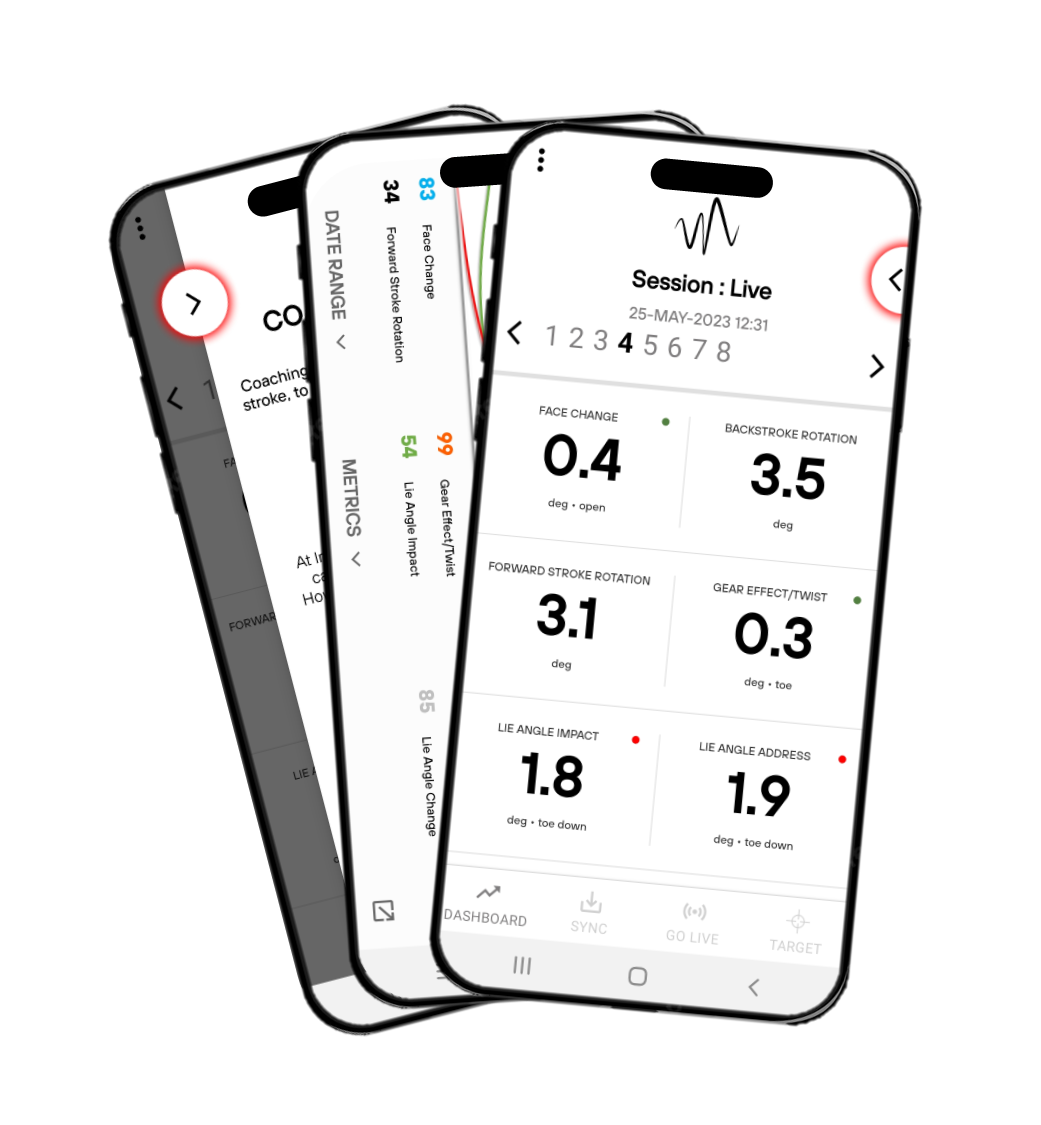
App Upgrade: May 2024
What has been upgraded, how to activate, how to use…
Updating your App: It is always recommended when updating your App that you fully delete your exiting App from your iOS device before installing a newer version from the AppStore, this automatically clears any cache which might be stored within your device(s) local memory and ensures a smooth transition during the upgrade.
Important Notes when Deleting the Vertex Golf App:
- If you have a subscription, it will ask whether you want to keep it… KEEP IT!
- It will also tell you, that along with deleting the App, it will also delete associated data. This is the locally stored cache, NOT all your previous putting sessions. These are stored on our servers. When you login after downloading the App, you will be asked to download all of your data from our server.
This upgrade released on 16th May, 2024 comes packed with a host of amendments, features and upgrades.
Naming, Tagging: (Available to all users)
One of the most requested features. The placeholder for this feature, now replaces the pre-existing delete putt function (Which has been moved, see below).
When on the dashboard in either Live, Target or Course mode, you can swipe a session to the left and reveal 2 options
- Blue: Edit Button (Naming & Tagging)
- Red: Delete a Whole Session Button
Selecting the Blue button now allows the user to add the person’s name, the putter name, and a number of tag options (Will be expanded over time).
At any point in time you can return and edit/change the details here, or reset the session to clear it, or start again.
Filtering: (Available to all users)
Once you have named, tagged sessions, you are now able to filter your dashboard.
From your dashboard screen, towards the top of your screen, a new tag icon will offer you the opportunity to filter according to Name, Putt Distance, Putt Type, Slope% etc…
Deleting a Putt:
This has now been moved inside the session interface screen. When the session screen is open, if you wish to delete a specific putt, you can select/press and hold for 3s on the chosen putt and you will be prompted to confirm that you wish to continue deleting this putt.
After the putt has been deleted, consistency scores will be updated to reflect this deletion.
New Session Screen Interface Options:
A lot of feedback was taken with regards to improvements around the session screen user interface. This can be accessed by switching between user interfaces, available within the My Profile section of your App.
My Profile >> Settings Icon (Top Right) >> 3rd Option to switch between original tile version and newer block version. (More options will be added here over time). You now have the following options available to you.
- Original All Measures Screen
- Original Single Measure Screen (Accessible via Option 1)
- New – Compacted Block Screen with display of Accuracy and Consistency Measures
- New – Compacted Single Block Screen with display of Accuracy and Consistency Measures (Accessible via Option 3)
For detailed understanding of how the Accuracy and Consistency measures are calculated and how we are planning on putting the power and control of these measures in to your own hands, please visit.
Click Here: Scoring System with Vertex Golf – Explained
Once in the new session screen interface, to access the single block screen, simply click on the main measure within each block.
- Face Change / Rotation – Select Face Change
- Face Aim at Impact (Premium and Elite Only)
- Rhythm
- Lie Angle Impact
- Shaft Lean Impact (Premium and Elite Only)
- Loft Angle Impact (Premium and Elite Only)
Bug Fix: Sequential Putt Display
Previously when putting, if selecting a measure or changing screen views, this would pause/stop the display of sequential putts, and ensuring as you putt it displays details of that putt. This has been resolved with the new session screen interface updates.
Account Linking – Data Sharing
A significant new feature which allows students to share their data with their coach in a simple, easy manner, no matter where they are in the world.
Elite Accounts:
Within the My Profile section of your App, you will now see a “Coach Pin”, this code is unique to you as an individual/account and can be shared with any Vertex Golf App user. The student or other user, will input this unique Coach Pin in to their App, which will make their putting data automatically available to you.
After a student or other user has linked their account to you, you can access their data by going to Menu >> Linked Accounts >> Select the appropriate student*
When selecting a student you will now have full view of all their putting data. If you are in a students dashboard and wish to refresh the data, because you might be aware of new data incoming their is a refresh button (top left), this will download the newest available data.
To exit this student and return to your own dashboard, go to Menu >> Log Out and you will return to your own dashboard.
NB:: As an elite account you also have the option to share your own data, with that of another Elite Account.
*For the moment we only collect email addresses on an account by account basis, in future releases we will provide users the option of adding their name, which in turn will feed through in to this area.
Standard & Premium Accounts:
Within the My Profile section of your App (Bottom), you will now see a new section, where you can share your data with any Elite Account, that provides you with their unique Coach Pin.
You can also share your putting data with as many Elite Accounts as you wish, especially for those that might have multiple coaches.