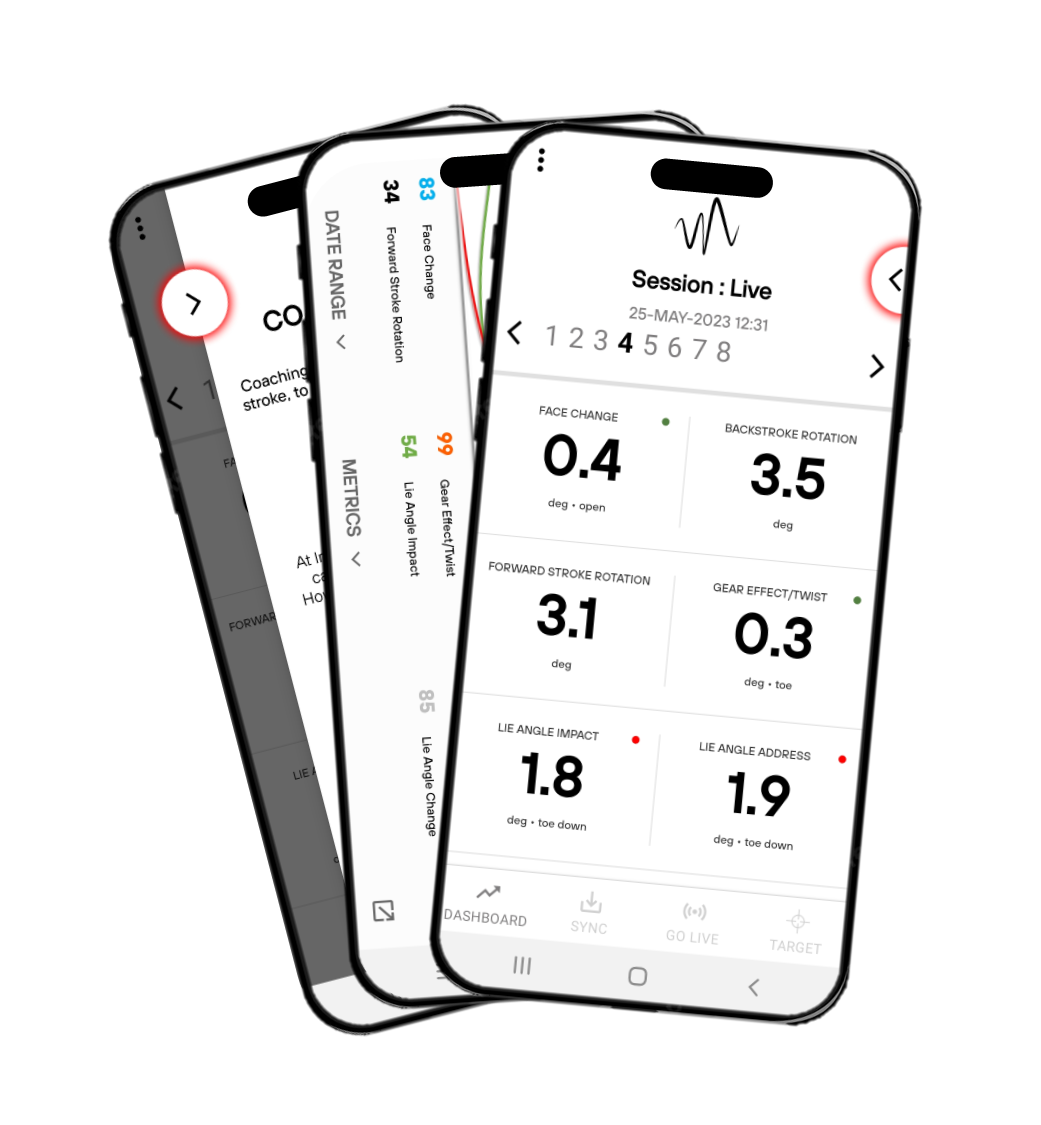
Quick Start Guide
快速入门指南 | 빠른 시작 안내서 | クイックスタートガイ | Guía de inicio rápido | Guide de démarrage rapide | Schnellstartanleitung


Latest Firmware / Software Versions: Vertex Golf App – v4.0.2 , Sensor Hardware – v16.0
Short Videos…
The Vertex
SmartCore Sensor
When using your Vertex Sensor for the first time please make sure you have charged it fully for at least 2 hours.
M20 / M22 Series
- Vertex SmartCore Round Sensor (20mm or 22mm)
- USB Magnetic Pogo Pin Charger
- Extraction Tool

USB Connection:
The Vertex Pogo Pin Chargers can plug either directly in to USB mounted charging port our a USB Adaptor relevant to the mains supply of your country.

Blue / Green Light:
When your charger lights shines blue it means it is powered and ready to charge. When charging, lights will turn green, and when fully 100% charged and ready it will turn back to blue.
(SmartCore devices charging)
Charging time can vary between 1-2 hours for a full charge, this depends on the type of outlet you are using to charge your device with.

Battery Life:
Battery Life can vary, dependant on usage. Ranging from 12hrs of constant non-stop use, up to 72/96hrs with infrequent use. Vertex SmartCore sensors are cleverly designed to understand when your putter is not being used, as such will go in to “Deep-Sleep” modes until woken up, by various gestures such as simply getting ready to make a putt.
M20 / M22 Series
Remove existing weight from the putter head. Screw in your M20 or M22 Vertex SmartCore Insert, and gently tighten with the supplied “Vertex Tightener”.
Some putters do not come standard with a weight sensor port or a weight port compatible to an existing Vertex SmartCore M20, M22 insert.

Step 1: Insert your Vertex SmartCore sensor in to the accompanying Shaft Clip.
Step 2: Apply the shaft clip behind the shaft as low as possible to the putter head, pull the rubber ring tab around the shaft and loop it in to the opposite hook, thus creating a secure hold.
Step 3: Gently push the shaft clip up away from the head. Roughly 10cm.
Step 4: Ensure the Shaft clip is roughly parallel to the face of the putter, IT IS NOT NECESSARY TO BE PERFECT, calibration will ensure that the orientation is matched up perfectly to the head of the putter.
Step 5: Open the Vertex App and follow the normal procedures as if the sensor was in the putter head. First complete calibration, then proceed to put as normal.
Vertex App
Getting Started
Getting started, connected and most importantly Calibration of your SmartCore sensor device.
The Vertex App is currently designed to be used on an iPhone or iPad.
Apple App Store -> Go to App Store
There is no restriction to the number of devices you can use your account on. When you create an account, simply make sure you log in to each device with the same details, every time your account is connected to the cloud it will synchronise and all data will be available across all of your devices.
Step 1: Make sure that you have inserted your Vertex SmartCore device securely in to the head of your putter, Ensuring the weight is located towards the “Toe” of the putter. If you have a putter housing with a single weight in the middle, this is fine as well.
Step 2: Once you have created an account with the Vertex App, login and the very first screen after the boarding pages, asks to either connect with your device or “Skip to view any previously recorded data / sessions”.
Step 3: Hold your putter up vertically, this will activate the “Wireless Connection” signature within the sensors, activating so that the device and the App can connect with each other. Once connected you will be sent to the main dashboard screen.
Calibrating your device and ensuring you understand whether your device is calibrated correctly, is the single most important part of using your Vertex Golf SmartCore sensor.
Whilst the process to calibrate is quick and simple, the effect of not being calibrated will result in one or a combination of the following
- Putts not being recorded as the sensor does not understand where it is in relation to the head of the putter.
- Putts not being recorded as the sensor does not understand it’s relationship between “Toe” of the putter and the centre point.
- Putts not being recorded as the sensor does not know its orientation to being right handed or left handed.
- Whilst on the edge of acceptance, putts might be recorded, but data will be recorded, relevant to it’s position during calibration.
It is not necessary to get calibration perfect to the smallest known measurement, our Calibration Code / Process takes care of this and tidies it up.
The Vertex App will walk you through, step by step on how to quickly and simply complete the calibration process.
Step 1: Face Calibration
Simply lay the putter FACE DOWN, slightly raised above a flat surface (You can use a Book, Vertex Carry Case etc… to do this), once confirmed you will run the calibration process in the App and after a few seconds the Face of your putter will be calibrated to the sensor.
The calibration process looks for leading edge of the putter, not the whole face, therefore whether the face of the putter is flat is not important.
NB: If you calibrate with the putter face up, the calibration will be 180° in the wrong direction.
The App Icon will turn from Red to Blue to confirm that Face Calibration has been completed.
Step 2: Lie Calibration
After you have successfully completed the Face Calibration, you will complete the Lie Calibration. Simply line your putter up against the wall, creating a 90 angle between the top of your putter handle and the centre point of your putter (click on image below to enlarge), this allows our code / algorithm to calculate the difference between the flat centre point of the Vertex SmartCore Sensor and the Putter.
The App Icon will turn from Red to Blue to confirm that Lie Calibration has been completed.
Once both calibrations have been completed you can now go and use your Vertex SmartCore Sensor.
Additional Notes for M20 / M22 Series
- It is NOT necessary to re-calibrate every time you use your device, IF the device is not removed from your putter.
- If you remove the device and re-insert in to the putter head you will need to re-calibrate.


From within the Vertex App, make sure your Vertex SmartCore Sensor is connected to your Phone or Tablet, access the Menu (Top Left) > SmartCore.
Middle left of the screen you will see the firmware section. If an update is available, it will say “Update Available” in Orange. You can click on this link and it will automatically start with the “Over-The-Air” Firmware Upgrade Process, this generally takes no longer than 30 seconds.
After the Firmware Update has been completed it will automatically disconnect your device from the App, you can now reconnect if you choose to do so.
Additional Notes:
NB: Whilst updating your firmware is an infrequent occurrence, this process will take roughly 10 – 15% of the battery life from the charging cycle you are in, please ensure you have enough battery life before you start the update process.
NB: Golf Coaches / Fitters / Retail Users: when updating firmware, make sure that only 1 device is advertising via Bluetooth during this process, if multiple devices are advertising the Firmware Update function will stop and the process will need to be restarted.
During the initial registration process, we ask you for a few simple pieces of information(Email Address and whether you are Right or Left Handed), the minimum required to ensure that you can get up and running with the Vertex App.
We do not have access to your password it is encrypted and not accessible within our system, as such you have the control to update any information you like.
Updating Passwords
From time to time, you might forget your password, don’t worry, on the front boarding screen of the Vertex App there is a “Forgot Password” function which via email will allow you to reset your password.
Updating Email Address
Updating your email address is quick and simple. From within the Vertex App, Access Menu > My Profile and click on your email address. This will open a small window where you can choose to update your details.
Language Preference
The Vertex App is available in 6 languages, English, French, German, Chinese, Korean and Japanese , languages can be changed quickly via the My Profile section… Access Menu > My Profile and choose the corresponding flag option under languages, after a few seconds the App will revert to the language of your choice.
When connected to a Vertex SmartCore device, you will have access to click the Live Mode button (Bottom of your screen), this opens a blank “Live Session” screen, and you are now ready to putt!

Additional Notes:
BLE RANGE – The units you have, have a signal strength / range of ~4m, in some cases depending on conditions this might be more.
Please make sure your iPhone / iPad, the back of the device is raised off the ground. A known issue with iPhones / iPad, is that the BLE transmitter / receiver sits at the back of the device and on occasion if laid directly on to the floor would cause the Bluetooth signal to drop / cut-out.
If connection is lost during a “Live Session” the Vertex App will try to reconnect, simply walk up to your device, within range and reconnect, you can continue putting as you were.
This is particularly useful for example if you have hit golf balls out of range and need to retrieve or briefly need to go and do something or speak to somebody. You can simply return and carry on from where you left.
Sync mode has no wireless restrictions, can be used literally anywhere, any time, be it on the golf course, practice green or in your living room, to collect data and upload at a later time.
When a putter is charged and is rotated in to a “Putt Ready” scenario, the weight insert will have already turned itself on due to the movement of the putter getting in to position. You can simply take putts, 1, 2, 3, as many putts as you like. When you are ready to upload the putts to the Vertex App…
Step 1: Open the Vertex App
Step 2: Connect your SmartCore device to the App
Step 3: Open “Sync Mode”, bottom of the dashboard screen

Step 4: Click on the download link, to download all available putts from your Vertex SmartCore device
Step 5: The “Sync Select Screen” appears giving you the opportunity to select which putts you want to keep and which putts you want to remove.
Step 6: After selection you will be transferred to a normal data screen to view your data metrics.
When connected to a Vertex SmartCore device, alongside an upgraded subscription package, you will have access to the Target Mode button (Bottom of your screen), this opens a blank “Target Session” screen, and you are now ready!
Target Mode allows the golfer to gain valuable insight in relation to their stroke when comparing against a known target. Particular measures include…
- Dynamic Aim
- Face Aim to Target
- Path Direction (Relative to Target)
- Takeaway Torque (Club Twist during a Forward Press)
The suggested methods of measuring and improving your stroke when it comes to Target Mode.
(1) Improvement: Simply line up the putter to the Target (Use an additional Aim / Alignment Laser) or known method of lining up square to your target.
Use this as a known reference of being lined up to the target and putt, doing this on a continual basis will help to understand & learn proper alignment.
(2) Measurement / Analysis: To measure pre-existing Aim Bias, a user can register the target in parallel to the known target. Make sure that point at which you register to the target is the same distance away as the intended target. It is recommended when measuring an Aim Bias that no ground references are in place to aid the user as to what square to target looks like.
(Example Image)

Further Explanation:
When registering a target, we are telling the sensor that there is a target 90° relative to the face.
When we move back in to position, “IF” we were square to the target, the sensor would still be at 0°, as it hasn’t rotated away from that position. If we line up 2° to the right, then the sensor has also rotated 2° to the right… this is how we understand Aim and all measures relative to an intended target.
Additional Notes:
BLE RANGE – The units you have, have a signal strength / range of ~4m, in some cases depending on conditions this might be more.
Please make sure your iPhone / iPad, the back of the device is raised off the ground. A known issue with phones / tablets is that the BLE transmitter / receiver sits at the back of the device and on occasion if laid directly on to the floor would cause the Bluetooth signal to drop / cut-out.
If connection is lost during a “Session” the Vertex App will ask you if you would like to reconnect, simply walk up to your device, within range and reconnect and you can continue putting as you were.
This is particularly useful for example if you have hit golf balls out of range and need to retrieve or briefly need to go and do something or speak to somebody. You can simply return and carry on from where you left.
Vertex App
Further Understanding
Understanding and how to use your data for maximum improvement.
There are many different measurements available to you within the Vertex App, it can sometimes seem rather daunting as to what all of these numbers mean! Fear not as we are here to make at as simple as possible.
Traffic Lights (Green, Orange & Red)
Some measures are easily definable and us such we group these in to a Traffic Light System, based on whether your output is considered Great, Ok or Bad.
- Green – Great
- Orange – Ok, needs some work
- Red – Bad – Key focus area for improvement
In order to define what is Great, Ok or Bad, we use generally accepted parameters within the golfing world, which are largely independent of whether you are trying to sink a 3ft putt or a 30ft putt, such parameters include Face Change, Lie Angle, Loft Angle, Attack Angle, Rhythm, Tempo etc…
Once you have completed putts / sessions you will be able to access a “Coaching Plan” – Menu Bar, accessible top right of the session page, highlighted with a red border. This “Coaching Plan” will highlight areas deemed to be Red / Orange (Ok / Bad) which are areas you should focus on for improvement.
At first we define the measurement for you, so that you understand how it is measured, secondly we identify the desired ranges for what you should be trying to achieve, here is an example.
Face Change
The Face Angle at Impact is the single most important metric of your putting stroke. Aiming square to target and with a neutral path direction, a putt that has Face Change of more than 1° Open or Closed will miss an 8ft Putt.
The desired range falls within 0 – 1° and as close to 0° as possible.
Therefore if your Face Change is less than 1° you will get Green, and then further away from 1° you are will determine whether you have Orange or Red.
Consistency
Some measures cannot simply be determined using a formula based around accuracy, Rotation is a simple case in point, every golfer has a unique putting stroke, Golfer “A” might have a backstroke rotation of 1°-2°, whilst Golfer “B” might have a backstroke rotation of 5°-6°, if both golfers achieve the objective of starting square and returning to square (Face Change 0°-1°), then neither golfers are wrong and we then put much more emphasis on the consistency between those measures.
For example, if you took 6 putts with a Backstroke Rotation of 2.2°, 2.8°, 2.3°, 2.7°, 1.8° and 2.6° this would much more consistent than somebody with 6 putts, recording 0.4°, 2.3°, 1.3°, 4.6°, 1.7° and 5.2°
Through a calculation method we will measure the range and consistency between putts, to again determine whether these are areas of interest for you to focus on, improve on.
Measures with no Traffic Lights
Some measures will not appear in the traffic light system, as they are there merely for informative purposes and cannot be determined whether they are right or wrong. One such example is Backstroke Length, our sensors will tell you what your length of backstroke is, however there are too many undefined parameters for us to safely make a judgement as to whether it is right or wrong (Uphill / Downhill Putt, Short / Long Putt, Stimp of the Green), you could also have a session with multiple putts across different distances.
The Coaching Plan, following on from understanding the Data Measurements above.
The Vertex App, learns from your putts / sessions and through which makes suggestions (Traffic Light System: Read – Understanding Data Measurements), the App will highlight the Red & Orange areas and depending on what level of Subscription / Upgrade Package you are on, you will receive help and guidance towards improvement in these areas.

These may include but not limited to:
- Definition of the measurement
- Outline of the required target ranges to improve
- Images / photo’s providing further definition and guidance
- Videos providing definition and guidance of the measurement – (Coming Soon)
- Videos providing instructional guidance and tips on how to make improvements in this area – (Coming Soon)
ADDITIONAL NOTES:
It is our belief at Vertex Golf that the “Coaching Plan” is an ever-evolving and key part of the Vertex App, we will strive to continuously add and improve function through all the available tiers (Standard – Free and throughout the Premium – Paid Tiers). We welcome any suggestions from golfers and coaches on how to add maximum value in this area to users. Please send an email to enquiries@vertex-golf.com
Track your performance over time. 5 sessions vs 10 sessions, On-Course vs Off-Course.
To access the Trend Performance Graph, from the dashboard view, select the dropdown arrow (Top Right)

Your view will switch to a horizontal / landscape view.
In this section you can decide on the following…
Range:
Select whether you would like to view trends for on-course / logged data or live practice sessions.
Metrics:
Choose up to 6 metrics to view at any one point in time.

(click to expand image)
The Vertex Golf SmartCore Sensor combines precise acceleration and angular rate measurement to provide up to 29 different metrics of the putting stroke.
Face Angles, Speed & Club Head Acceleration, Loft, Lie and Attack Angles to name but just a few.
The Vertex SmartCore Sensor System has been designed in such a way to balance output versus cost, making the system affordable to those looking for simple, high level metrics, whilst those looking to dive deep in to their putting stroke, have the option of unlocking all 29 measures and features with an abundance of information at their fingertips.
Standard “Off-The-Shelf” System Only – Free App / No Subscription
- 10 Measures
- Face Change
- Back Stroke Rotation
- Forward Stroke Rotation
- Lie Angle Impact
- Rhythm
- Backstroke Time
- Forward Stroke Time
- Total Stroke Time
- Backstroke Length
- Club Head Speed (Impact)
- Great Features
- Live / Practice View
- Sync / Course View
- Trend Performance Graph
- Highlighted Focus Areas – With Definitions & Objectives of Measurement Criteria
Premium System – Subscription: Monthly $14.99 or Annual $59.99
In addition to the Standard System
- 17 Measures
- Face Aim at Impact
- Dynamic Aim
- Path Direction
- Shaft Lean (Impact)
- Loft Angle (Impact)
- Club Head Acceleration
- Great Additional Features
- Target Mode
Elite System – Subscription: Monthly $29.99 or Annual $119.99
In addition to the Premium System
- 29 Measures
- Gear Effect / Twist
- Lie Angle (Address)
- Lie Angle (Change)
- Shaft Lean (Address)
- Shaft Lean (Change)
- Loft Angle (Address)
- Loft Angle (Change)
- In-Line Rotation – Back Stroke
- In-Line Rotation – Forward Stroke
- Face Angle Change 10cm > Address
- Face Angle Change 10cm < Impact
- Face Angle Change 10cm > Impact
For any person who is interested to see all the new and exciting features we are working on, please visit our About Us page (Bottom). This is where we gave public view of all projects we are working on.
It is our endeavour to continuously add value to all our existing and future customers.
Subscriptions / Upgrades can only be managed between the Vertex App and the App Store by which the purchase / subscription will be made.
Purchasing a Subscription / Upgrade
Within the Vertex App, navigate towards Menu > My Profile > My Add Ons. Here you will be able to navigate between the options available to you. Once you have chosen the option you would like, the rest of the process will be managed by the Apple App Store.
Cancelling a Subscription / Upgrade in the Apple App Store
In the Apple App Store app, you can manage subscriptions and review and download purchases made by you.
- Tap your profile picture at the top right, then tap Subscriptions.
- You may need to sign in with your Apple ID.
- Choose a subscription, then do any of the following:
- Change or cancel an existing subscription.
- Re-subscribe to an expired subscription.
IMPORTANT: Simply uninstalling an App from your device does not cancel a subscription agreement between yourself and the Apple App Store.
FAQ / Support
Sensor
Having some problems? Have a look in to the most frequently asked questions we receive, and how to get back up and putting.
- Please check for the obvious, switch at the wall and the plug adaptor being used for the USB Cable.
- Leave charging for 30minutes and see if the device is being recognised within the Vertex Golf App ready for connection.
- None of the above, please contact us on support@vertex-golf.com
Follow video example below.
Step 1: Go to Menu > SmartCore > Face Calibration
Step 2: Follow on-screen instructions, ensure the putter is lying flat, parallel to a level surface.

Follow video example below.
Step 1: Go to Menu > SmartCore > Lie Calibration (PLEASE MAKE SURE FACE CALIBRATION IS COMPLETED FIRST!!)
Step 2: Follow on-screen instructions, ensure the putter is lying perpendicular, 90° to the surface.

Step 3: How to ensure that your putter is level to the ground when performing a Lie Calibration
In the absence of a spirit level which can be applied to the top of a putter to ensure that the putter head is level and parallel to the ground. You can use this handy chart and measure the distance away from the wall. Assumption is the standard shaft angle of the putter is 70°.

Stand your putter up against a nearby wall, and then depending on your putter length you can mark the centre point of your putter against the horizontal measurement highlighted above.

If your device is connected to the Vertex App, but is not picking or showing putts, this is because of 3 reasons.
(1) The device is not properly calibrated. A device that is not properly calibrated could provide data figures which would not be considered normal and therefore outside of the threshold for a valid putt. For example, if a putter was calibrated with a Lie Angle of 10° Toe Up, when it comes to putting the consequent results could say that you are 10° Toe Down. We would consider this to be abnormal and hence not validate the putt for viewing.
(2) It can sometimes be possible when upgrading accounts to a premium subscription tier that their is confusion between what our server believes your subscription to be and what the App believes the subscription level should be. In these cases, the data is coming through to the App, the view on the App screen however is blank, blocking access to view. In such cases, please reach out to us on enquiries@vertex-golf.com
(3) Whilst rare… Putt algorithms/signatures are used to understand what a Putt looks like, whilst many steps are taken to capture the overwhelming majority of putting stroke types, it is possible that the thresholds set do not meet with your particular putting stroke type.
If in doubt get in touch with us at enquiries@vertex-golf.com
If you are getting what would be perceived to be very strange values for measures such as Lie Angle, Shaft Lean, Loft, Path Direction, Aim / Alignment and Impact to Target, then please Calibrate or Re-Calibrate your sensors.
In simple terms, if the sensor believes it is pointing 8° up and your true Lie Angle was 1° up, then the resulting data would say that you are 9° up. So re-calibrating your device back to 0° is important.
Please follow calibration procedures above.
FAQ / Support
App
Getting started, connected and most importantly Calibration of your SmartCore sensor device.
FAQ / Support
General
Have a look in to some other frequently asked questions we receive.